
 #
#
Autopilot #
MailboxValidator’s integration with Autopilot provides users a very simple way to import their email list into MailboxValidator for verification and then return the results back to Autopilot.
Getting started #
First of all, you need to have an account in Autopilot and also MailboxValidator. So head on to the sign up page and register for one. Once you have done this, you’ll need to upload your email list in Autopilot.
Importing #
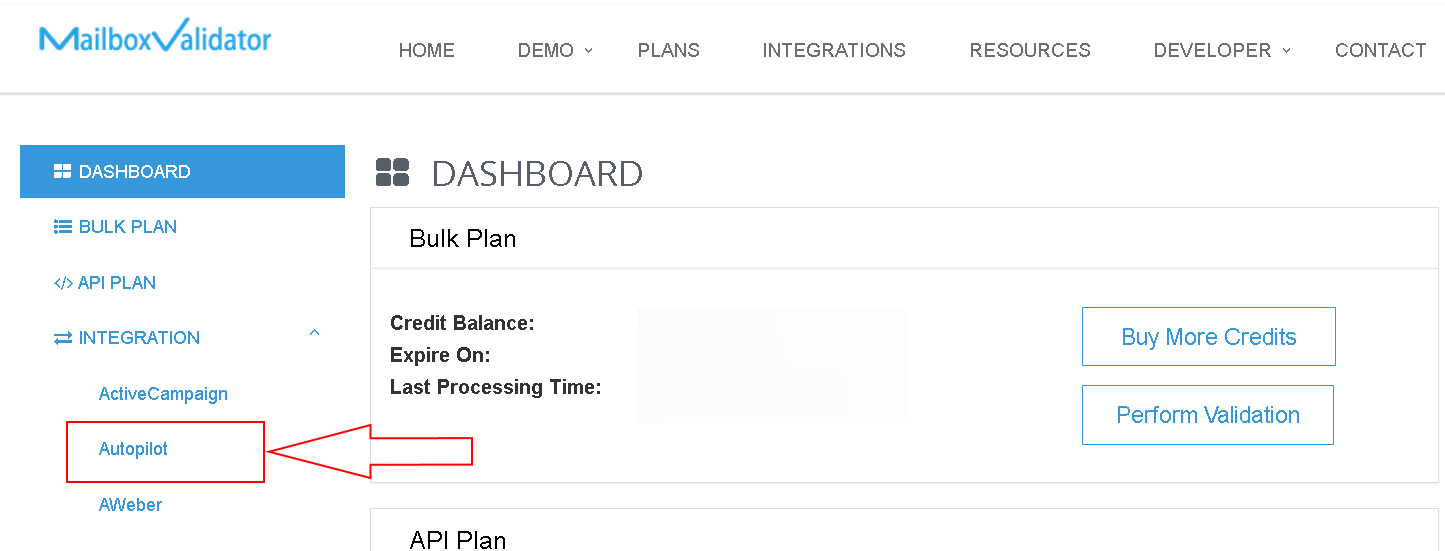
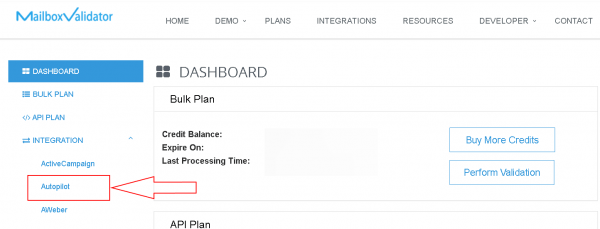
- Once your email list in Autopilot is ready, login to your MailboxValidator dashboard and select “Import Autopilot Data” from the “Integration” side menu.
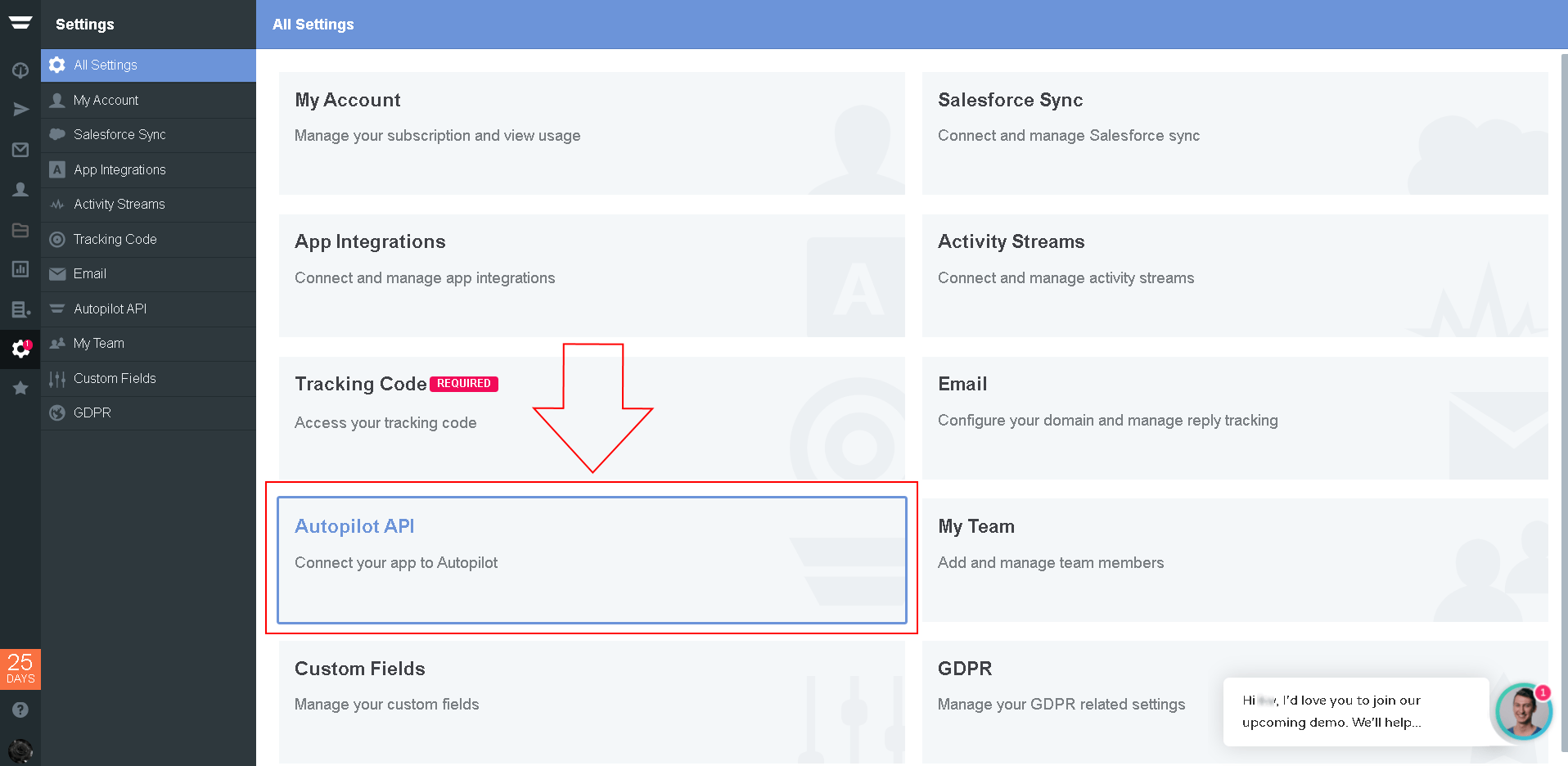
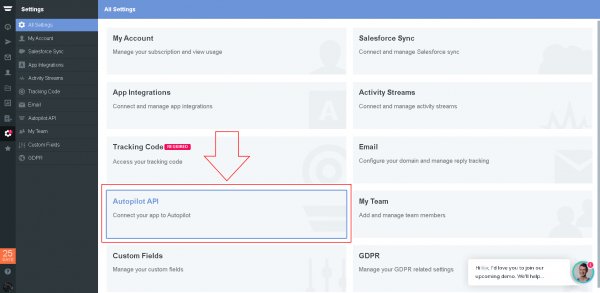
- Login into your Autopilot account to get your Autopilot API key. Go to “Settings” > “Autopilot API”. If you haven’t generate any Autopilot API key before, click the “Generate” button to generate a new API key.
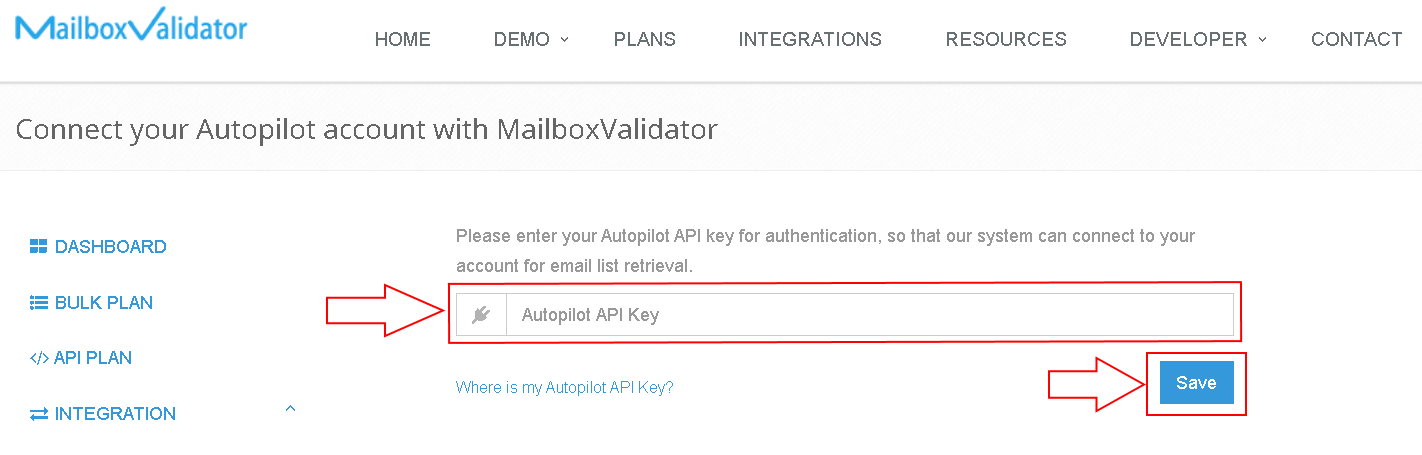
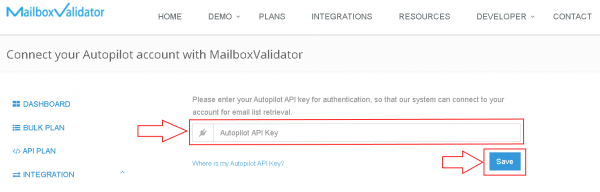
- After the API key is ready, copy the API key and paste into the text box in MailboxValidator. Click the Save button to save the API key in our database.
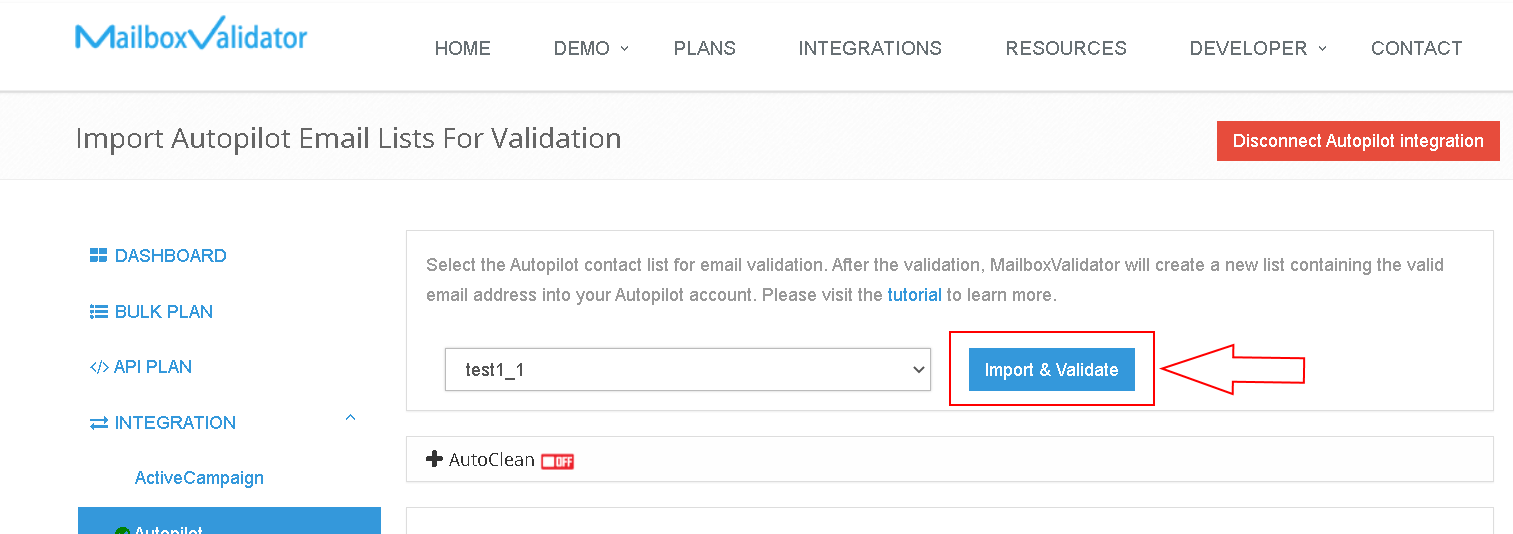
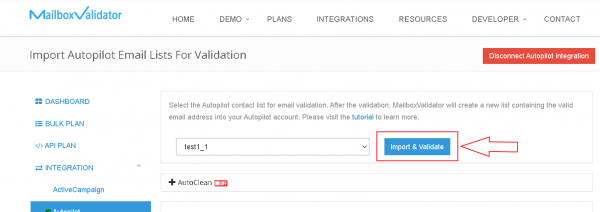
- When you have saved your API key successfully, you should see “We have successfully verified your API with Autopilot and saved it into our system. You can now proceed to import Autopilot email list for validation.” then click on “Go to import page.” to see your Autopilot lists. Now, choose the list that you want to import, then click on “Import Selected List & Validate”.
- You shall see a message like this, “Your list will be processed and Autopilot will be updated automatically.”
- Go to the Bulk Plan page and click on Bulk Validation, you can see the progress. Please note that the validation process may not start immediately as all bulk validation tasks are put into a queue and processed in the order that they were queued up. Rest assured, your validations will be processed when you have reached your turn in the queue.
- Once the progress showed 100%, you’ve completed validation and the analyzed result will be updated at Autopilot . You can download the result straight from the MailboxValidator dashboard or go back to your Autopilot account. You will also be notified via email when the validation is done.
- Don’t be surprised to see a new list with the suffix name “-mbv-clean” been created as it is created intentionally to keep only the valid emails.