

MailboxValidator’s integration with iContact provides users the simplest way to import their email list into MailboxValidator for validation and then return the results back to iContact. This article will demonstrate how to use this integration to clean your email list.
Getting Started #
First, you will need to have an account with both MailboxValidator and iContact. If you do not have an account yet, go ahead and register for a new account from the sign-up page. You will also need to prepare and upload your email list to iContact.
Importing Email List #
Once your email list in iContact is ready, log in to your MailboxValidator dashboard and select “Import iContact Data” from the “Integration” dropdown menu on the left-hand side.
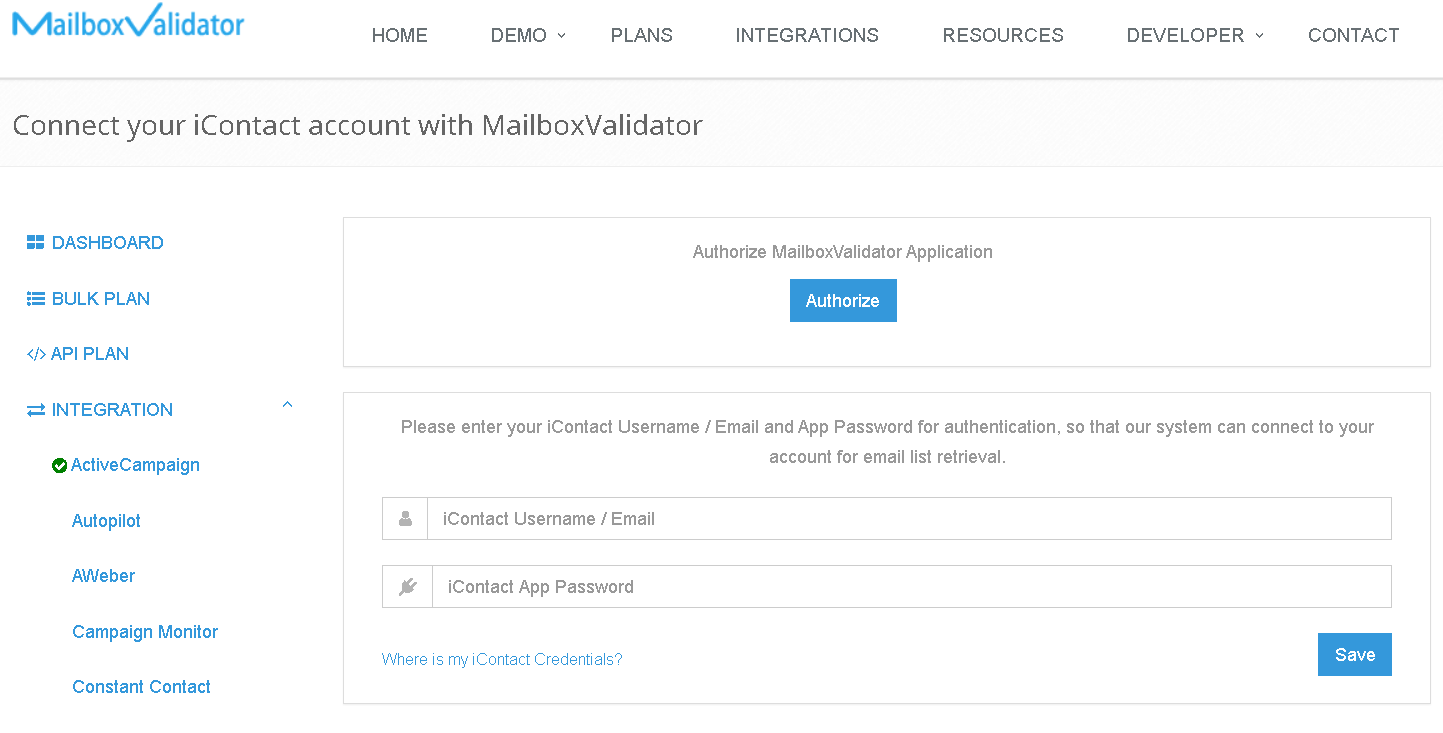
If you have not used this integration before, you will be redirected to the iContact authentication page to enter your iContact login email and App password. First, click the “Authorize” button to proceed to the iContact login page. Log in to iContact using your credentials, and you will then be redirected to a page where you can create a dedicated App password for the MailboxValidator integration.
Enter the new App password and click the “Save” button. Once completed, return to the iContact authentication page and enter your iContact login email and the App password you have just created. Click the “Save” button to proceed.
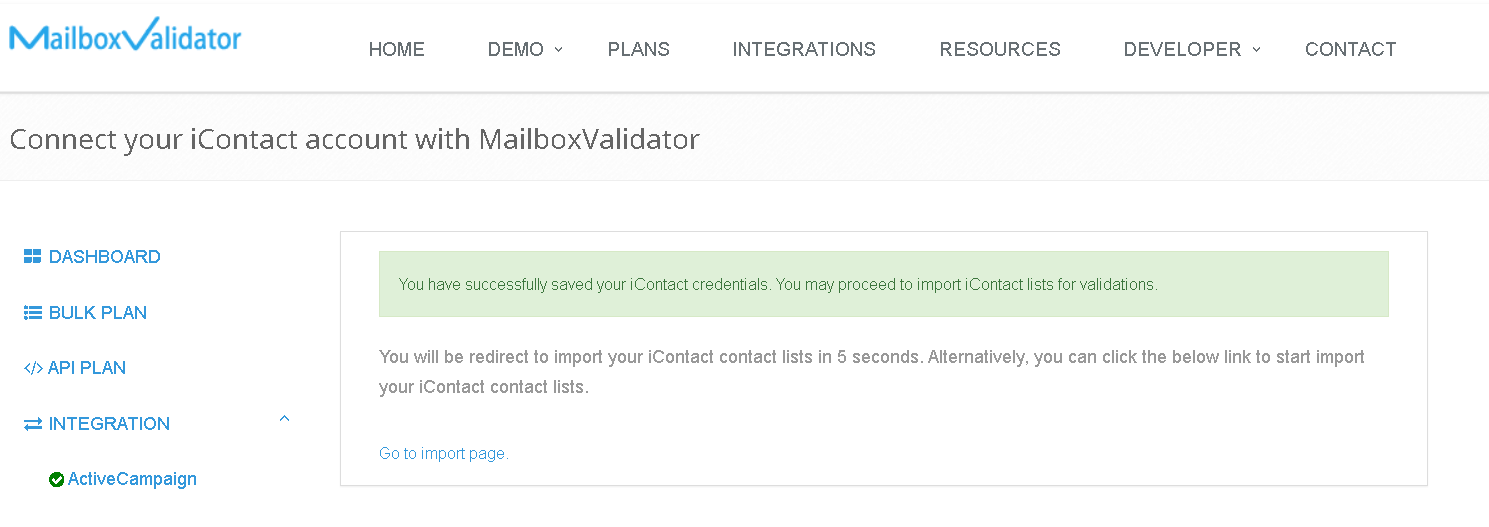
When you have successfully saved your credentials, you should see the message: “You have successfully saved your iContact credentials. You may proceed to import iContact lists for validation.” Then, click on “Go to import page” to view your iContact email lists.
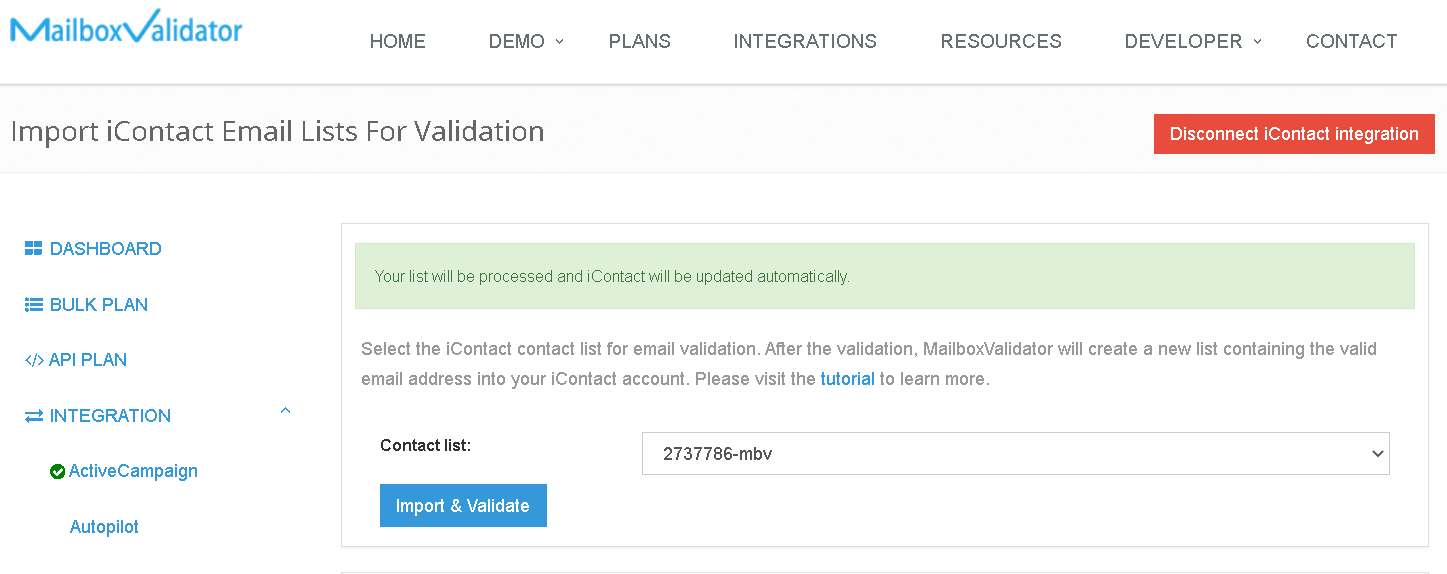
Next, select the list that you want to import, and click on “Import Selected List & Validate”.
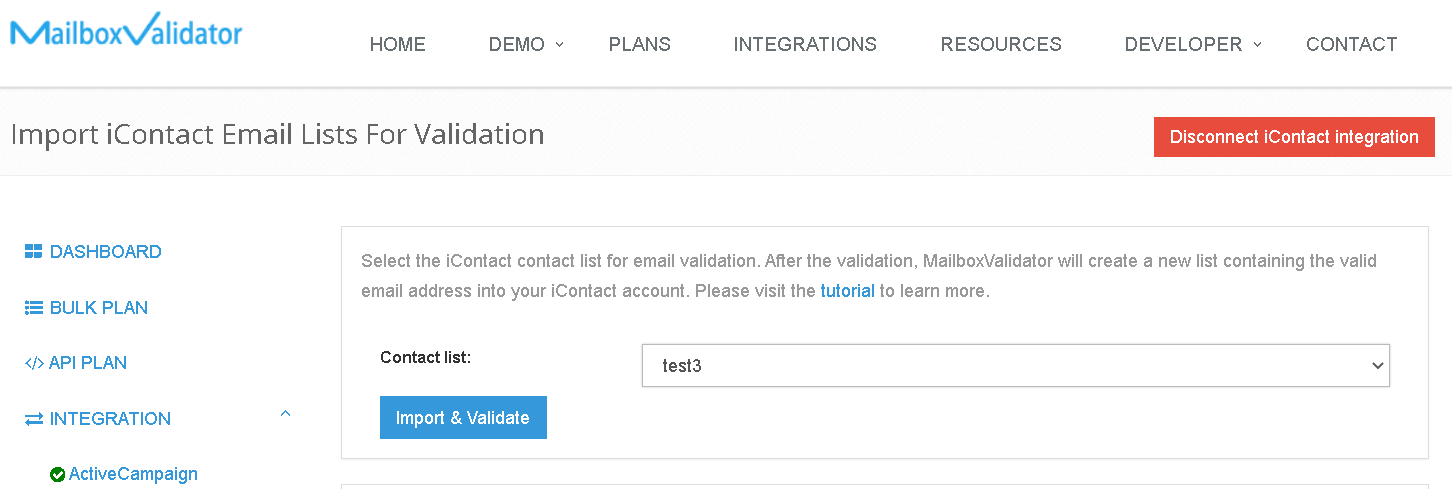
If the email list is imported successfully, you will see a message like this: “Your list will be processed and iContact will be updated automatically.”
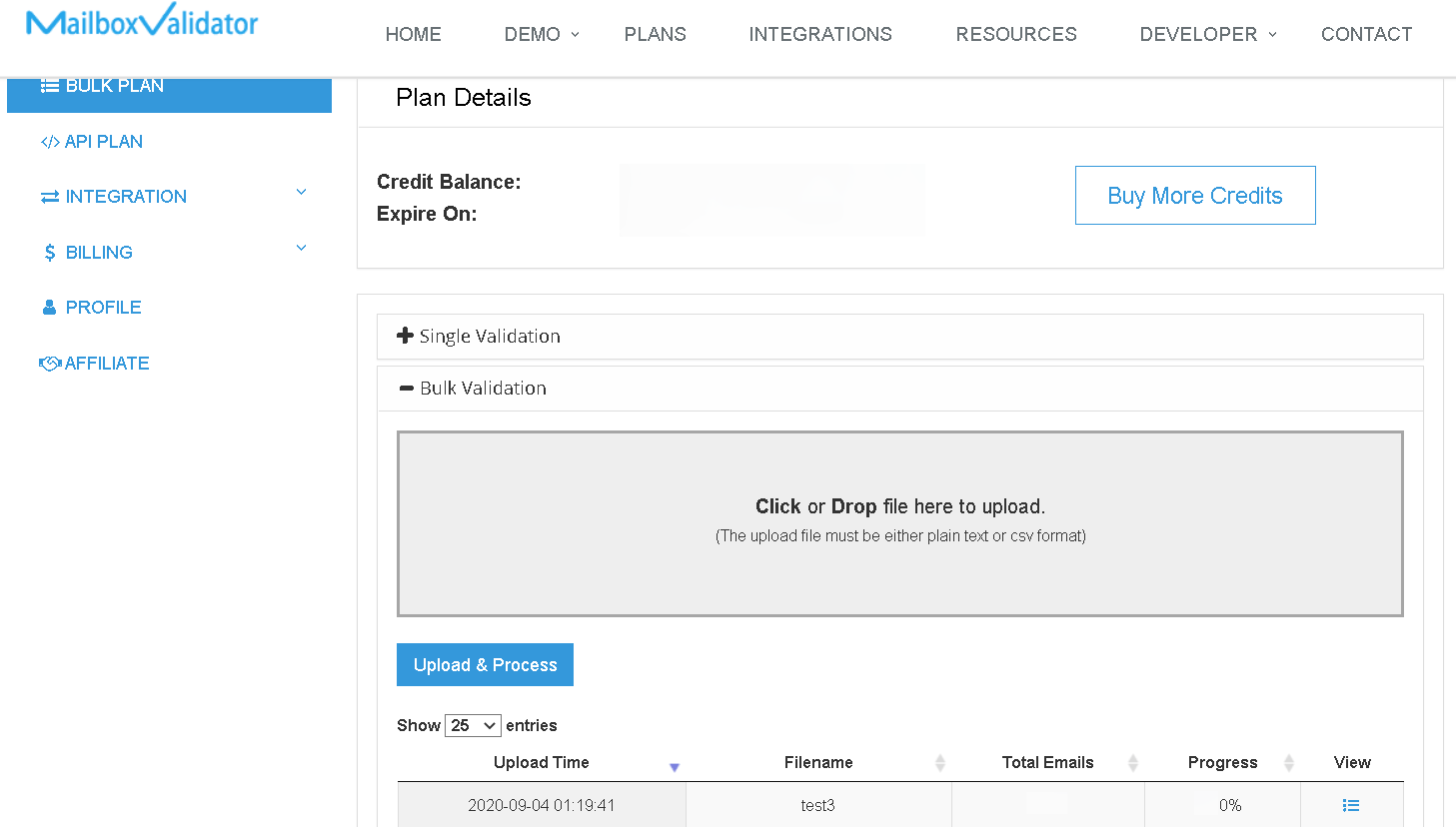
Go to the Bulk Plan page and click on “Bulk Validation” to view the progress. Please note that the validation process may not begin immediately, as all bulk validation tasks are placed in a queue and processed in the order they were received.
Rest assured that your validation tasks will be processed once they reach their turn in the queue.
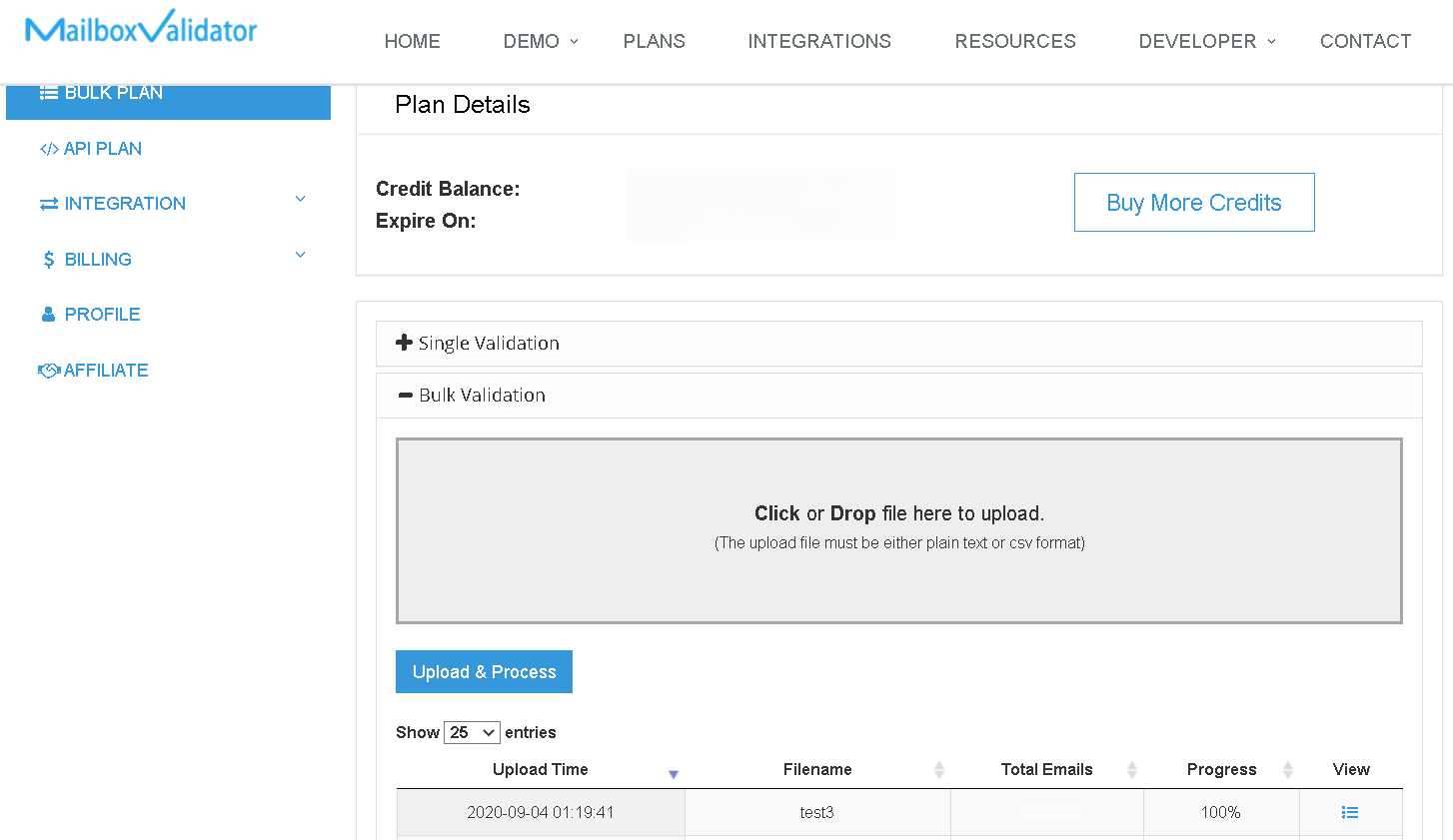
Once the progress reaches 100%, the validation process is complete, and the analyzed results will be updated in iContact. You can download the results directly from the MailboxValidator dashboard or return to your iContact account to view them.
You will also receive an email notification once the validation process is completed.
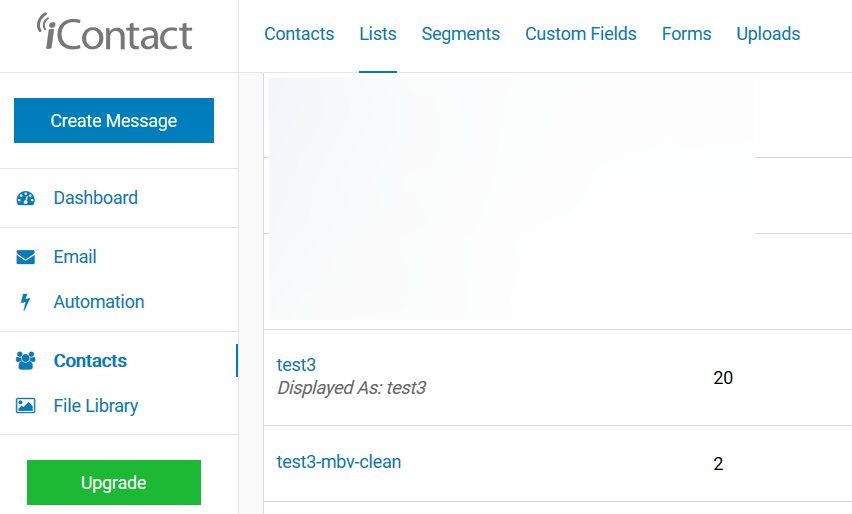
Don’t be surprised to see a new list with the name “-mbv-clean” being created, as it is intentionally created to keep only valid email addresses.
#
Get started with MailboxValidator #
Improve your email deliverability and sender reputation in email marketing.
Register today and clean your email lists for FREE!